Graph
Explore projects, mapped folders and files, and relationships across the workspace.
Graph maps the workspace as projects, clusters, files, and connections. Use it to find an artifact, follow its neighborhood, or carry a group of related files into Timeline.
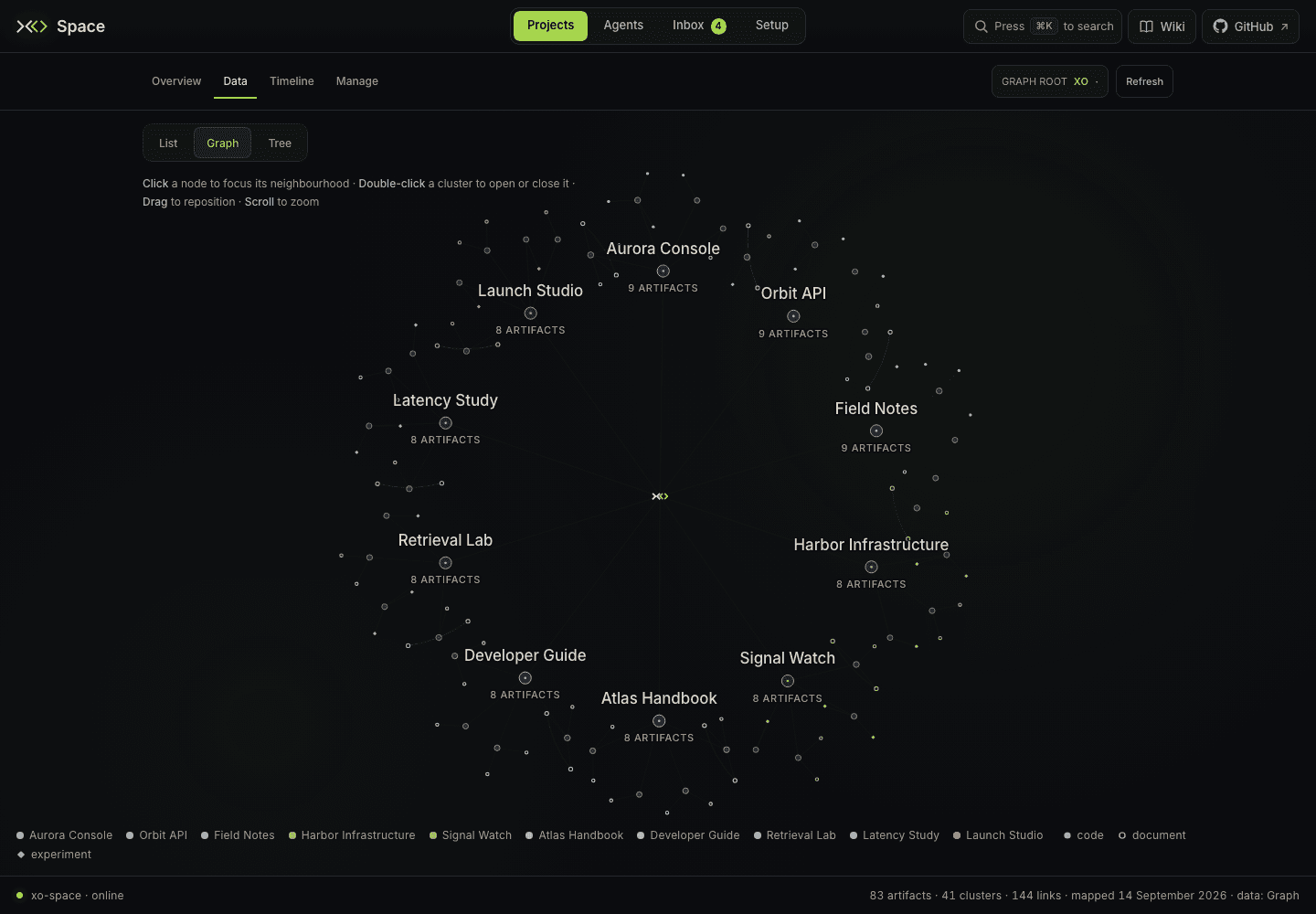
Open Projects → Data → Graph, or use /space/#/projects/data/graph. The older #/graph link also opens this view.
Move through the map
- Click a node to focus its immediate neighborhood and open the detail panel. The focus pill reports how many hops and nodes are included.
- Double-click a cluster to expand or collapse its files. Double-click a project to expand or collapse its clusters together.
- Drag empty canvas to pan, drag a node to reposition it, and use the wheel to zoom.
- Hover a node for its summary. Click a connection in the detail panel to follow it.
- Use Clear, the detail panel's close button, or Esc to clear focus. An open preview takes the first Esc.
Use Graph root in the Projects navigation row to search mapped nodes by name or descriptive metadata. Selecting a result reorganizes the map around it. ⌘K / Ctrl+K, or / on the map, opens the global command menu; choosing a project there opens its Data List drawer.
Read a file or follow time
Selecting a mapped file shows its name, path, date when available, description, and connections. Preview file opens the shared floating preview window, including its Source toggle and Git version selector.
Show on timeline appears for files and clusters. It opens Timeline with a focused trace of dated related files. Use Clear trace there to return to the wider timeline.
Overview uses project nodes and purpose environments; Graph uses the more detailed workspace map. Project todo satellites belong to Overview, because Graph's file nodes represent a different level of detail.
Change the graph root
Open the Graph root picker, search for a node, and select it to reorganize the map around that node. Choose Reset to … in the same picker to return to the workspace center.
Re-rooting and dragging affect the visualization only. To change which directory Space treats as the workspace, use Projects folder in Setup → Workspace.
Coverage and reloads
Graph reads the derived map at GET /xo/space.json; it includes mapped files rather than every filesystem entry. An excluded or newly created file can still be browsable through the List drawer before it appears here.
Switching between Overview and Graph rebuilds the atlas for the selected dataset without reloading the page. An open preview stays mounted across Projects sections, including Timeline and Manage. Switching to Agents, Inbox, Setup, or Wiki closes it.