Inbox
Triage incoming items, monitor connections and jobs, and inspect workspace and sharing activity.
Inbox brings incoming items, connection polling, scheduled jobs, and
activity into one section. Open the third primary tab, press 3, or use
/space/#/inbox/items. The older #/inbox link opens Items.
Choose an Inbox page
| Page | What it shows | Route |
|---|---|---|
| Items | Incoming work you can mark seen or done | #/inbox/items |
| Connections | Saved app collectors, polling cadence, and latest poll results | #/inbox/connections |
| Jobs | Interval commands and their latest results | #/inbox/jobs |
| Activity | Workspace events, open sessions, and project todos | #/inbox/activity |
| Sharing activity | Recent repository-sharing events | #/inbox/sharing-activity |
| Sharing | Shared repositories, incoming changes, and sync controls | #/inbox/sharing |
Only Items uses the new/seen/done triage workflow. The other pages show the underlying activity or connection state. See the Sharing guide for repository controls.
Read and handle an item
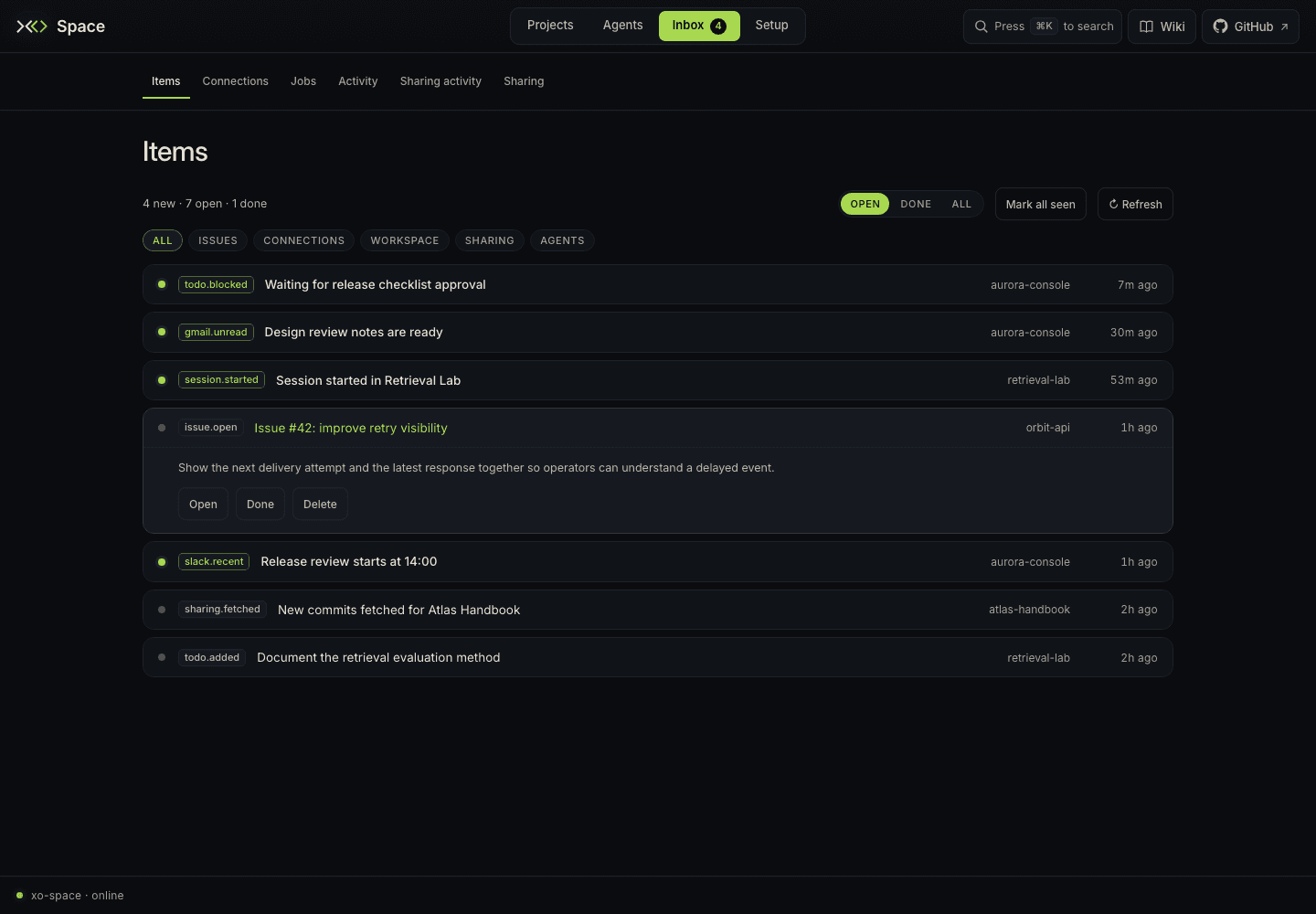
- Open Inbox → Items. Open includes both new and seen items; Done shows handled items; All includes both groups.
- Click a row to expand its details. Opening a new item marks it seen and reduces the new-item badge on the tab.
- Use Open to jump to its Space context, such as a project, session, or file. Open link, when present, opens the original issue, mail, event, or page in another browser tab.
- Choose Done when you have handled the item. Use Reopen from Done or All to bring it back to Open.
Done changes the inbox item's status; it does not close a GitHub issue, complete its todo, or reply to a message. Make those changes in the relevant project or connected application.
The header's counts cover the entire stored inbox; the tab badge counts its new items. Mark all seen marks every new item in the loaded status page, including rows hidden by source or search filters. When a filter is active, the button reads Mark all loaded seen to make that scope explicit. Delete removes an item; a source such as a still-blocked todo can create it again, so Done is usually the better way to retain a record of handling it.
Filter by where it came from
| Source | Items you can expect |
|---|---|
| Issues | GitHub issues mirrored from projects with a GitHub origin |
| Connections | Items collected by enabled app polling |
| Workspace | Session starts and todo events; blocked todos by default |
| Sharing | Incoming shares and repository relay events |
| Agents | Items posted through the Inbox API by agents or scripts |
| All | Every source in the loaded page |
Source pills filter the newest 200 loaded items in the selected status page. When the Search loaded inbox items… field is visible, it matches titles, bodies, kinds, sources, and project IDs; all entered words must match. It does not search the entire archive, so the status counts can exceed the rows you see. Items refreshes every 30 seconds while open; Refresh reads it immediately. See the search guide for the current toolbar behavior.
Check connected apps
Open Inbox → Connections to see each connected or configured toolkit's account label, collectors, cadence, and latest poll result. Connections has its own page and refresh cycle, so refreshing it does not rebuild an expanded Inbox item.
- Poll now runs the saved collectors immediately and reloads the list.
- Configure or Open Setup opens Setup → Connectors so you can adjust polling.
- No connections polled yet means you need to connect an app and save its polling settings first.
Gmail and Google Calendar can show the email of the account this workspace uses once the server resolves it. Check that label when expected items are missing. See Connectors for the full setup flow.
Monitor scheduled jobs
Inbox → Jobs lists commands with an interval, including disabled schedules. Each row shows its cadence, enabled state, next due time, and latest result or running status. Results opens that command's newest 20 runs and local log path. Open Setup takes you to Setup → Commands to edit or run it.
Manual-only commands appear in Setup rather than Jobs. The page refreshes every 30 seconds, or every three seconds while a displayed job is running. Opening results does not execute a command or create an Inbox item.
See Commands & schedules to create a command, choose its first run time, and understand automatic execution.
Follow workspace activity
Inbox → Activity is a read-only feed of project events, including session starts and ends, todo updates, file changes, and work-item or peer-sync events. Choose a Project to focus the feed. Selecting a project also opens its current sessions and todos; the todo panel shows up to 30 rows and the total count.
The Search activity… page filter, when visible, covers loaded events. Load older events fetches another page of history when available; it is separate from the Inbox Items retention window. The feed also refreshes every 30 seconds. A project name on an event opens that project's data view.
Check sharing activity
Inbox → Sharing activity shows the latest 50 events from the repository sharing service, such as incoming shares, fetched commits, clones, and sync errors. Filter by Repository; the Search sharing activity… page filter, when visible, also narrows loaded entries. Repository links open Inbox → Sharing.
This recent-event buffer is cleared when the server restarts. It has no Load older events action and is not a durable sharing audit log. Use Sharing for current repository state and actions.
When something is missing
| Symptom | Check |
|---|---|
| No workspace items | Confirm watcher coverage and recent activity in Setup; a newly created inbox starts with recent events, not the full history |
| No issues | Check the project's Issues panel and its last poll; projects need a GitHub origin and working GitHub access |
| No connected-app items | Confirm XO sign-in, On in this workspace, saved polling, selected collectors, and the last poll result |
| An error mentions only one calendar | Other calendars can still succeed; read the partial-error message before reconnecting everything |
| An item disappears from Open | Check Done; blocked-todo and issue feeders can mark items done after their source leaves the watched state |
| Older events are absent | Initial timeline/connection ingestion covers the last 24 hours; issues bootstrap from the last seven days |
Inbox item status is machine-local at <state root>/inbox/inbox.json, normally
~/.quirq/inbox/inbox.json with the runtime fallback root. The local installer
normally uses <workspace>/.quirq/; Setup → Workspace shows the effective
Space data folder. It is not shared project metadata. On writes, the store keeps at most
500 items and prunes Done items whose item timestamp is older than 30 days; it
is a working inbox, not a permanent audit archive. Activity, sharing activity,
and command results have their own sources and retention.